Best Apps for Managing Personal and Work Tasks in One Simple Stack
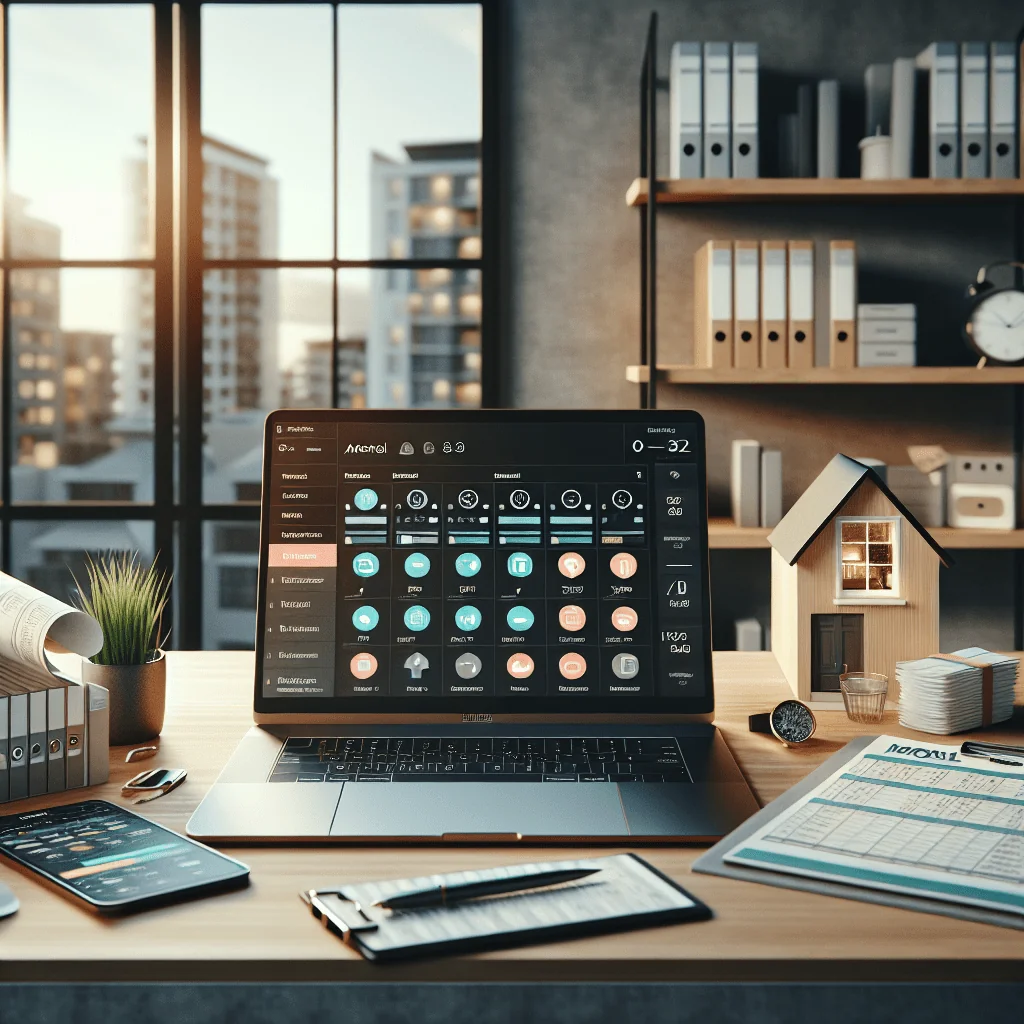
If your tasks live in five different apps, you lose focus and time. The best productivity apps help you centralize to-dos, events, notes, and projects without adding friction. This guide walks through the best apps by category and shows how to combine them into a clean, reliable system for both personal and work tasks.
How to choose a simple productivity tool stack
Before picking specific tools, decide what you actually need your apps to do. A clear structure prevents app overload and makes your system easier to keep up to date.
Most people need only a few core functions: tasks, calendar, notes, communication, and storage. Extra tools like time tracking, habit tracking, or focus timers are helpful, but they should support your core system, not replace it.
Here are the key building blocks of a healthy productivity tool stack:
- Task manager: capture, organize, and review all personal and work to-dos.
- Calendar: schedule meetings, time blocks, and deadlines.
- Notes and documents: store ideas, project plans, and meeting notes.
- Project management: coordinate work with small teams or collaborators.
- Focus and time tools: track time, build habits, and support deep work.
Once these parts are clear, you can choose the best apps for each role and avoid overlap. The goal is fewer tools used well, not every new app installed.
Best to-do list apps for personal and work tasks
A strong to-do list app is the center of your productivity system. The best to do list app is fast to capture tasks and flexible enough for both simple and complex work.
Good candidates let you add due dates, priorities, and projects, and they sync across devices. Many also include reminders and natural language input, which speeds up daily use.
Popular picks for the best to-do list app include:
Todoist: Great for people who want labels, filters, and project structure. Works well for both solo users and small teams with shared projects.
Microsoft To Do: Simple, free, and well integrated with Outlook and Microsoft 365. A good choice for work environments that already use Microsoft tools.
Things (Mac/iOS): Clean design and smooth experience for Apple users who prefer a focused, offline-friendly app.
Best note taking app for work and deep thinking
Task lists tell you what to do; notes help you think and plan. The best note taking app for work should handle quick notes, structured documents, and long-term knowledge in one place.
Three popular options are Notion, Obsidian, and Evernote. Each suits a different style of work and thinking, and each can be the core of a knowledge system.
Notion vs Obsidian vs Evernote for work notes
These three tools cover most needs for modern knowledge workers. The right choice depends on how you like to write, store, and connect information.
Notion: Works as a flexible workspace for notes, wikis, light project tracking, and databases. Great for teams and structured documentation, and a strong choice for remote work. Less ideal for heavy offline use or very large personal knowledge bases.
Obsidian: Suits people who like linked notes and local files. Notes are stored as plain text on your device, and you can build a network of ideas. Ideal for researchers, writers, and knowledge workers who think in connections and want long-term control of their data.
Evernote: Classic option for clipping web content, scanning documents, and organizing notebooks. Good for people who want a familiar interface and strong search across many notes and files.
Each of these can also act as the best meeting notes app for many users, since they support templates, tags, and checklists for action items.
Best calendar app for Mac and cross-device planning
Your calendar shows how your time is actually used. The best calendar app for Mac or any platform should sync fast, support multiple calendars, and show tasks alongside events where possible.
Apple Calendar works well for many Mac users, especially if you stay inside the Apple ecosystem. For more advanced features, some people prefer third-party apps with better views, scheduling links, or time blocking support.
The best app for managing tasks and calendar together is often a calendar that can show tasks from your to-do app, or a task app that can sync due dates to your calendar. When you choose tools, check how well they integrate through standard calendar feeds and reminders.
Best time tracking and focus timer apps
Time tracking helps you see where your workday actually goes. Focus timers help you stay on one task instead of switching tabs every minute.
The best time tracking app for you depends on how detailed you need your data. Freelancers may want project-based tracking for billing, while employees may just want a simple log of focused hours and breaks.
For focus, many people use a Pomodoro-style timer. The best focus timer app with Pomodoro features usually includes short work sprints, breaks, and simple stats so you can review your day. Choose a timer that is quick to start, with minimal setup, so you will actually use it.
Best habit tracker apps to support long-term change
Habits make productivity automatic. The best habit tracker app helps you repeat small actions every day, with clear streaks and reminders.
Look for simple daily tracking, flexible schedules, and gentle reminders rather than pressure. A good habit tracker should feel like support, not a source of guilt or stress.
Many people track habits like planning tomorrow’s tasks, reading, exercise, or deep work sessions. These habits reinforce your whole productivity stack and reduce decision fatigue.
Best project management tools for small teams
When you work with others, a personal to-do list is not enough. The best project management tool for small teams gives everyone a shared view of tasks, owners, and deadlines.
Three common options are Trello, Asana, and ClickUp. Each has a different style and level of complexity, which matters for small teams that do not want heavy overhead.
Trello vs Asana vs ClickUp for small teams
These three tools cover most use cases for small group work. The table below gives a quick side-by-side view to help you choose based on style and needs.
Quick comparison: Trello vs Asana vs ClickUp
| Tool | Best for | Interface style | Complexity level |
|---|---|---|---|
| Trello | Simple projects and visual workflows | Board and card based | Low |
| Asana | Structured projects and clear ownership | Lists, boards, timelines | Medium |
| ClickUp | Teams that want many features in one place | Lists, boards, docs, dashboards | High |
Trello: Card-based boards that feel like digital sticky notes. Great for visual thinkers and simple workflows. Best for small projects and teams that want minimal setup and fast onboarding.
Asana: Strong for structured projects, recurring workflows, and cross-team work. Offers lists, boards, and timelines. Good for teams that need clear ownership, status, and due dates.
ClickUp: Very feature rich, combining tasks, docs, goals, and more. Useful for teams that want one central tool, but can feel heavy for very small or very simple teams.
Best password manager and email client for productivity
Security and communication can either support your productivity or slow you down. A good password manager saves time and reduces stress, while a focused email client helps you process messages faster.
The best password manager should generate strong passwords, store them securely, and autofill across devices. This reduces login friction and lowers the risk of reusing weak passwords across accounts.
The best email client for productivity should offer fast search, keyboard shortcuts, and features like snooze, send later, and smart filters. These features help you treat email like a task stream instead of a constant source of distraction.
Best AI tools and browser extensions for productivity
AI tools and browser extensions can remove small friction points in your day. Used well, they speed up writing, research, and repetitive tasks.
The best AI tools for productivity can help draft emails, summarize long documents, and brainstorm ideas. Many also plug into note apps or email clients so you can use them in your existing workflow without extra copying and pasting.
The best browser extensions for productivity often block distracting sites, manage tabs, capture web pages to your note system, or autofill forms. Always review permissions and keep only extensions you actively use to avoid bloat and privacy risks.
Best document scanner and meeting notes apps
Paper and meetings are still part of modern work. The best document scanner app turns physical pages into clear, searchable PDFs, which you can store in your note app or cloud drive.
Look for a scanner app with clean scans, automatic edge detection, and text recognition. This makes old documents easy to search and share, which is useful for both students and teams.
The best meeting notes app should make it easy to capture key points, decisions, and next actions. Many people use their main note app for this, but some prefer a dedicated meeting notes tool that links notes to calendar events and tasks.
Productivity tools for remote work
Remote work adds new needs: clear communication, shared documents, and time zone awareness. The best productivity tools for remote work combine chat, video calls, shared documents, and task tracking in a simple way.
For remote teams, choose tools that reduce context switching. For example, a project management app that integrates with your chat tool and document storage can cut down on status meetings and long email threads.
Remote workers also benefit from time tracking and focus timers, since boundaries between work and personal life can blur. These tools help you protect deep work time and log hours fairly across different projects.
Free productivity tools for students and teams
Many of the best apps for managing personal and work tasks have generous free plans. Students and small teams can build a strong system without paying for software at the start.
Common free options include basic to-do lists, simple calendars, and note apps with storage limits. Some project management tools also offer free tiers for small teams with a limited number of users or projects.
Start with free versions first. Upgrade only if you clearly need features like more storage, advanced automation, or team permissions that unlock real value for your work.
Putting it together: best app setup for managing tasks and calendar
You do not need every category in this article. A simple, effective setup for most people could look like this: one task manager, one calendar, one note app, and one project tool for team work.
The best app for managing tasks and calendar together is often a combination: a to-do list app that syncs with your calendar, plus a note app where you keep project details and meeting notes. Add a focus timer and password manager as small, high-impact extras.
The checklist below gives you a clear sequence for building your own productivity tool stack step by step.
- Pick one primary to-do list app and move all tasks into it.
- Choose a calendar app that syncs on every device you use.
- Select a note taking app for work projects, ideas, and meeting notes.
- Add a simple project management tool if you work with a small team.
- Layer on a time tracking or focus timer app for deep work sessions.
- Install a password manager and key browser extensions for productivity.
- Review your setup after a few weeks and remove any app you rarely open.
Choose tools that feel clear and light to use. The best productivity apps are the ones you open every day without thinking, because they match how you already work and think, and they help you stay focused on real tasks instead of managing software.